TL;DR: Vimcal is the best fit here for professionals who repeatedly coordinate meetings with clients, candidates, and distributed teams. Its strongest reasons to choose it are Free Time Finder, group polls, and availability sharing on iOS. Notion Calendar is a strong free alternative, especially if your work lives in Notion. Motion fits automatic task planning, Reclaim protects flexible focus time, and Calendly or Cal.com can handle a booking-page workflow.
Someone emails you six possible meeting times. Now you have to check each one against your calendar, convert the time zone, and send a reply. Multiply that by clients, candidates, and teammates, and scheduling becomes a job of its own.
That’s the problem I’d use to judge a calendar for a meeting-heavy role: how much work does it take to get the meeting booked?
Vimcal is my pick when that coordination happens throughout the day. If your bigger problem is finding time to finish work between meetings, Motion or Reclaim deserves a closer look. And if you already work in Notion and mostly schedule from your desk, Notion Calendar is a strong free option.
First, figure out which kind of help you need
If your main friction is coordinating meetings, compare calendar clients such as Vimcal, Google Calendar, Outlook, Notion Calendar, and Fantastical. Look at availability sharing, time zones, shortcuts, and account support.
If it’s making time for tasks, look at Motion, Reclaim, and Morgen. Motion automatically schedules tasks around deadlines and meetings. Reclaim protects flexible time and coordinates recurring meetings. Morgen combines calendars and task planning.
If you mainly need people to book from a link, compare Calendly and Cal.com. You can keep your current calendar alongside a booking tool.
Choose the category before comparing the apps. A booking page, a faster calendar, and an automatic task planner solve different parts of a busy week.
This guide compares current published features and pricing, with recommendations based on scheduling workflows, calendar compatibility, planning features, and cost.
Comparison at a glance
| App | Main strength | Best fit | Pricing |
|---|---|---|---|
| Vimcal | Incoming availability matching, group polls, and mobile scheduling | Professionals who repeatedly coordinate internal and external meetings | Free iOS-only plan; desktop and iOS plan at $35/month or $25/month billed annually |
| Google Calendar | Familiar calendar with Google integration | People who want a capable default | Free for personal use; business features depend on Workspace plan |
| Outlook | Calendar coordination within Microsoft organizations | Teams using Microsoft 365 or Exchange | Included in applicable Microsoft 365 plans; personal Outlook is also available free |
| Motion | Automatic task and project scheduling | People who want their task list turned into a daily plan | Pro AI starts at $19/seat/month with annual billing |
| Reclaim | Flexible focus time, habits, and recurring meetings | People who want automation around an existing calendar | Free Lite plan; Starter at $10/seat/month billed annually |
| Notion Calendar | Notion integration and built-in scheduling | People managing projects and documents in Notion | Free |
| Fantastical | Multiple calendar providers and natural-language entry | People combining iCloud and work calendars | Free plan; paid Flexibits Premium plans |
| Morgen | Task integrations and calendar planning | People combining work across several tools | Individual plan at $15/month billed annually or $30/month billed monthly |
| Calendly | Booking pages and scheduling automation | People who want others to book from a link | Free plan; Standard at $10/seat/month billed annually |
| Cal.com | Customizable booking pages | Individuals and teams who want flexible scheduling infrastructure | Free individual plan; paid team plans |
Prices are in USD. Annual rates require annual billing. Free plans have different limits, and paid features vary by plan. Each product section links to the vendor’s current pricing or product page.
The best calendar apps in 2026
1. Vimcal: best for professionals who repeatedly coordinate meetings
Vimcal is my pick for recruiters, founders, and client-facing professionals who spend much of their week getting meetings booked. It connects to Google Calendar and Outlook.
Slots lets you drag across available times, then copy them into a message or share a booking link. It’s useful when you want to offer specific options without typing them out. The free iOS app also supports availability sharing.
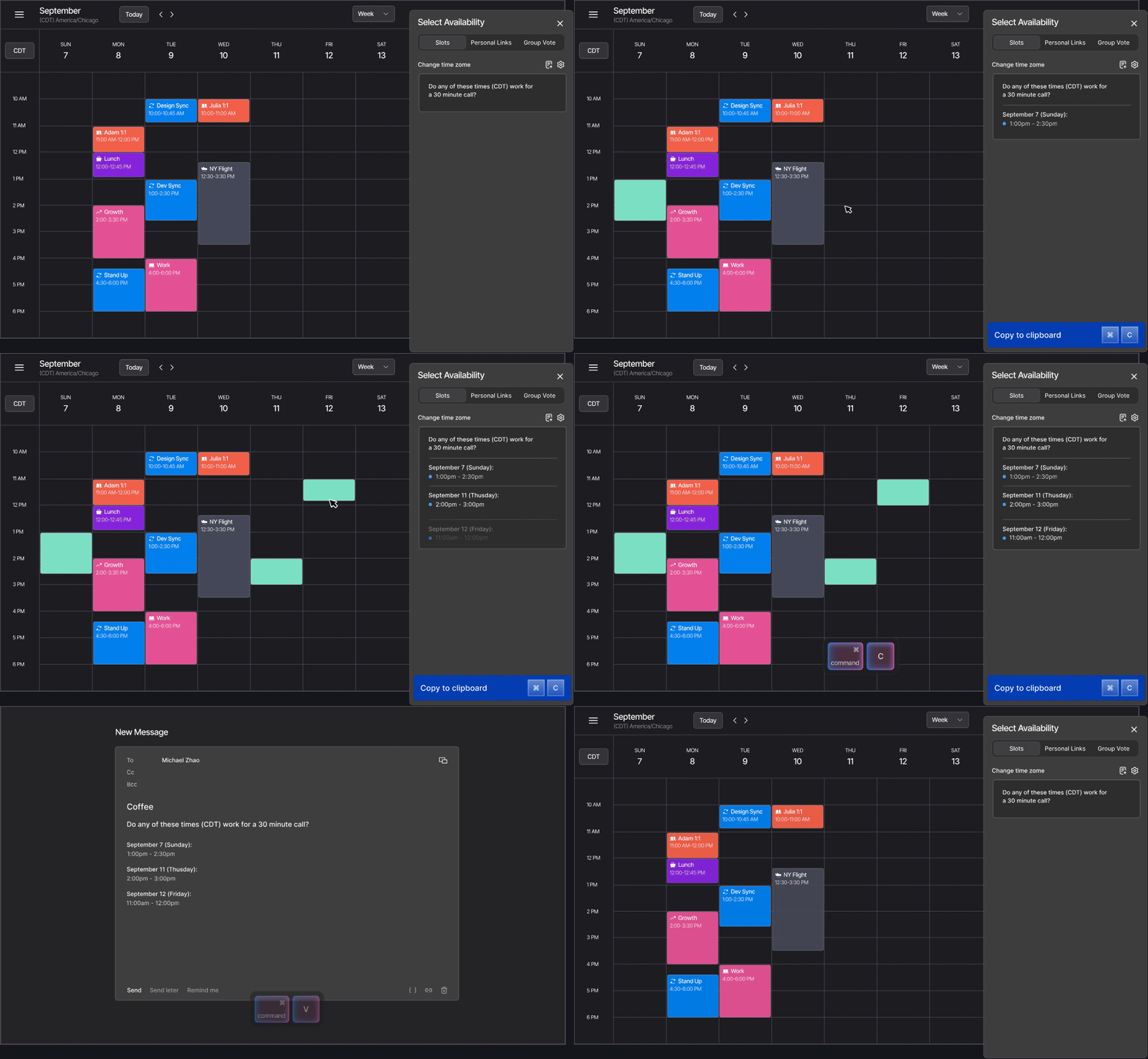
Select available times and copy them with Slots. Source: Vimcal Help Center.
Free Time Finder handles incoming suggestions: paste meeting times, drag in a screenshot, or add a Calendly link to compare options against your schedule. Group polls, included in the standard desktop plan, let attendees vote without using Vimcal.
Time Travel shows overlapping work hours across time zones, while keyboard shortcuts speed up navigation and event creation. These features matter most when coordination is a daily part of your job.
The tradeoffs: Google and Outlook are the only supported calendar providers. Vimcal doesn’t collect payments for appointments, and it focuses on meetings rather than comprehensive task planning.
Price: Free for iOS only; desktop and iOS cost $35/month or $25/month billed annually. Vimcal EA is a separate tier for delegated executive scheduling.
2. Google Calendar: best free default
Start with Google Calendar if you already use Gmail and scheduling isn’t consuming much of your day. It handles shared calendars, recurring events, and everyday scheduling without requiring another subscription for personal use.

Google Calendar brings everyday scheduling and meeting details together. Source: Google Workspace.
It also has more scheduling help than many comparisons acknowledge. Gmail lets you offer available meeting times directly in an email, and eligible plans offer Gemini-assisted scheduling.
The tradeoff: Features depend on your account and plan. For example, Gmail’s documented “Propose times you’re free” flow uses your primary calendar. Check that the workflow covers the accounts and meeting types you actually use.
Price: Free for personal use. Google Workspace is a paid business subscription.
3. Outlook: best for Microsoft 365 organizations
If your company runs on Microsoft 365 or Exchange, Outlook has a practical advantage: it already fits the organization’s calendar and permissions setup.
Its Scheduling Assistant shows attendee availability for supported work or school accounts. Shared calendars and room booking are useful when everyone is working in the same environment.
The tradeoff: Visibility depends on account type and sharing permissions. Internal coordination doesn’t automatically give you access to an external client’s schedule.
Price: Included in applicable Microsoft 365 plans. Personal Outlook is also available free.
4. Motion: best for automatically planning tasks
Motion takes tasks, deadlines, and priorities and uses them to plan work around your meetings. When the schedule changes, it recalculates the plan.
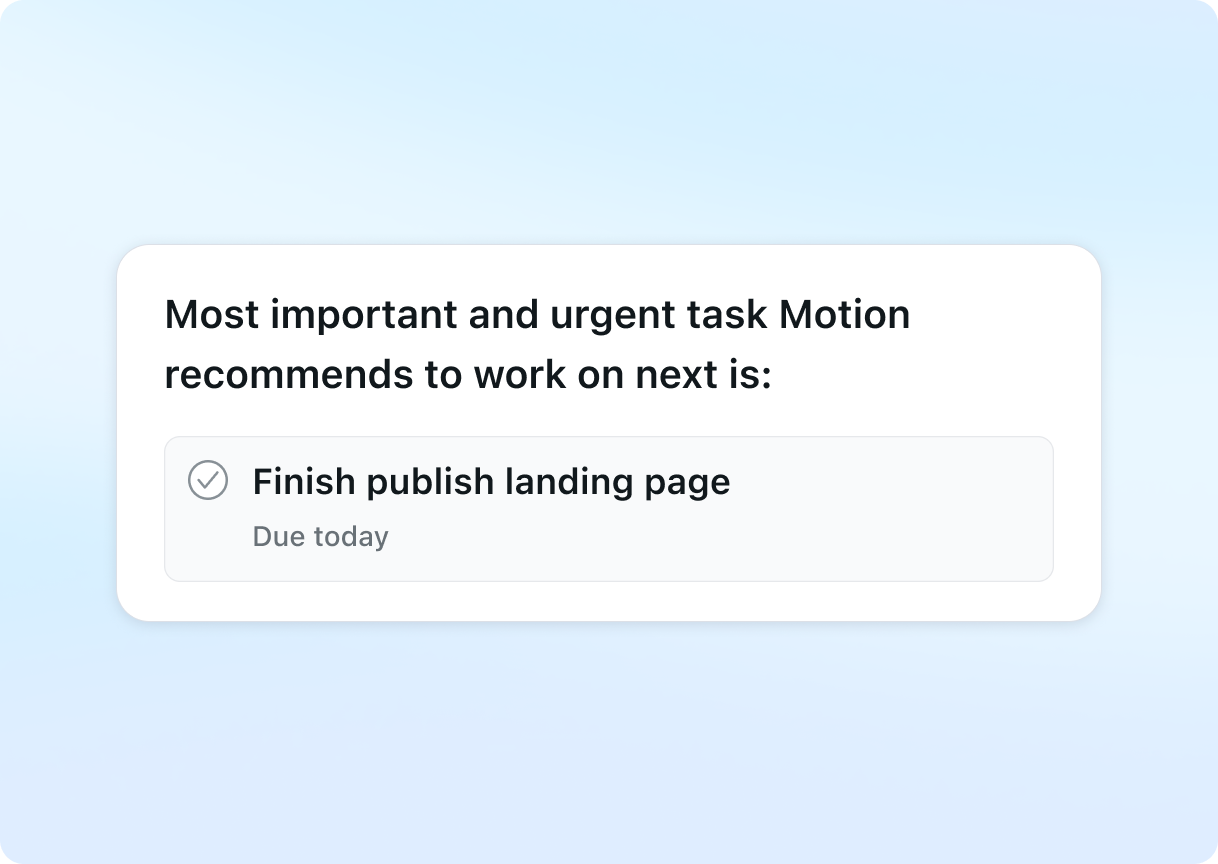
Motion recommends what to work on next based on your task priorities. Source: Motion.
Choose Motion when you want your task list turned into a schedule. It also includes meeting scheduling, but the broader task and project planning system is the reason I’d choose it: you decide what needs doing and let the software help decide when.
The tradeoff: You need to maintain useful task inputs and be comfortable with automatic replanning. A full meeting calendar still leaves a capacity problem that software can’t solve by rearranging tasks alone.
Price: Pro AI starts at $19/seat/month with annual billing. A free trial is available.
5. Reclaim: best for protecting focus time and coordinating recurring meetings
Reclaim adds scheduling automation around your existing calendar. It can find flexible time for focus work, habits, and tasks, then adjust those blocks as your week changes.

Set a weekly focus-time goal and the length of each block. Source: Reclaim Help Center.
It also offers Smart Meetings for coordinating recurring meetings and resolving scheduling conflicts. That makes it worth considering even when your week is full of meetings.
The tradeoff: You need to set priorities and scheduling preferences. The free plan limits the scheduling range and other capabilities, so check the plan details against your workflow.
Price: Free Lite plan. Starter is $10/seat/month billed annually or $12/seat/month billed monthly.
6. Notion Calendar: best free alternative for Notion users
Notion Calendar is my free pick for people whose project context already lives in Notion. It brings Notion pages, meeting notes, and database dates into your calendar. Having those details next to the meeting can matter more than another scheduling feature.
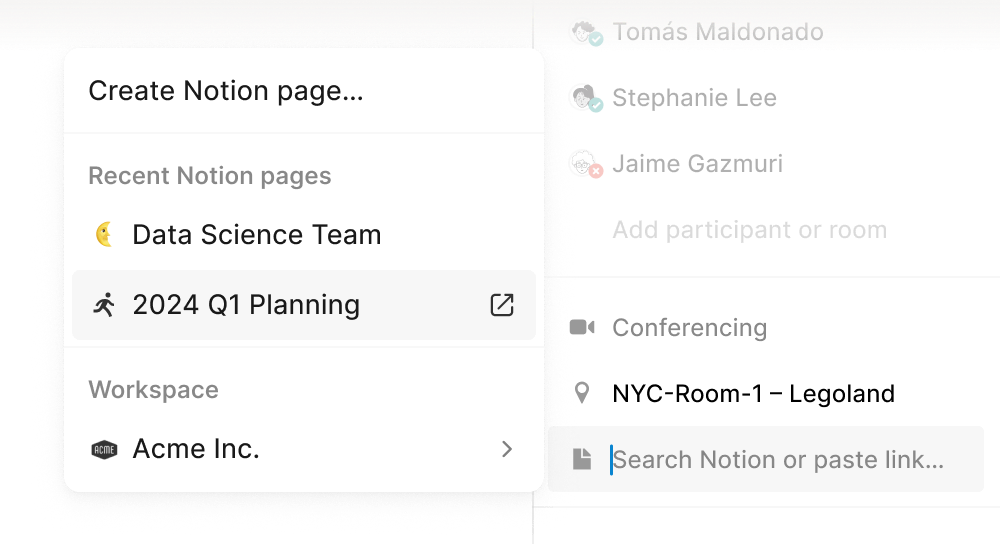
Attach Notion documents to keep meeting context beside the event. Source: Notion.
Its meeting tools are capable too. You can create one-off or recurring scheduling links, display multiple labeled time zones, and press Z to temporarily travel to another zone. It also offers keyboard shortcuts and menu-bar access to meetings.
It currently supports Google, iCloud, and Microsoft Outlook calendars. Outlook support on mobile is still listed as coming soon.
The tradeoff: The mobile app has fewer scheduling capabilities than desktop and web. Notion’s help page says you can’t create scheduling snippets or search for events and contacts on mobile. Those restrictions matter if you regularly arrange meetings away from your desk.
Price: Free.
7. Fantastical: best for combining iCloud and work calendars
Fantastical supports iCloud, Google, Exchange, Microsoft 365, and other calendar services. It also turns natural-language descriptions into events and tasks.
Its meeting tools deserve more than a passing mention. Proposals let you suggest several times and collect invitee responses, while Openings provides booking links. Its 2026 time-zone update added up to six time-zone columns on Mac and three on iOS.

Review invitee responses before confirming a proposed meeting. Source: Flexibits.
That makes it a credible option for international scheduling, particularly if your personal calendar is on iCloud. Vimcal’s Google-and-Outlook support won’t cover that same mix.
The tradeoff: Scheduling capabilities require Premium, and features vary by device. Decide whether you want invitees to respond to a proposal, book through a link, or reply to specific options in an email; those are different ways to arrange the same meeting.
Price: Free plan, with paid individual, family, and team Premium plans. See the live pricing page for current rates.
8. Morgen: best for bringing tasks and calendars together
Morgen combines calendar accounts, task integrations, and time blocking. It offers AI planning, calendar automations, and booking pages across desktop, mobile, and browser.
Choose Morgen if your tasks are spread across several tools and you want to review an AI-generated plan before putting it on your calendar. Its AI Planner lets you preview and adjust recommendations, then approve the schedule.

Morgen brings tasks and meetings into a calendar plan. Source: Morgen AI Planner.
The tradeoff: Once you’ve approved the plan, a new meeting that conflicts with a task triggers a notification. You direct the AI Planner to reschedule it. That control is useful if you want a say in changes; choose Motion if you prefer automatic replanning.
Price: Individual plans are $15/month billed annually or $30/month billed monthly. Team pricing is separate.
9. Calendly: best for straightforward booking links
Calendly gives people a booking page that checks connected calendars for availability. Paid plans add capabilities such as reminders, multiple event types, and team scheduling.
Choose Calendly when you want clients to book an appointment from a link. You can keep using your existing calendar alongside it; there’s no need to change calendar apps just to add a booking page.

A booking link lets the recipient choose an available appointment. Source: Calendly.
For paid consulting appointments, paid plans offer a Stripe integration that can collect payment when someone books. That’s a reason to choose a booking tool even if you also use Vimcal as your calendar.
The tradeoff: The free plan includes one event type and one calendar connection. More complex workflows may require a paid plan.
Price: Free plan. Standard starts at $10/seat/month billed annually.
10. Cal.com: best for flexible booking pages
Cal.com offers a free individual plan with unlimited event types and calendar connections. Paid plans add collaboration features.
I’d compare Cal.com first if Calendly’s free limit of one event type and one calendar connection is too restrictive. Teams should compare the paid collaboration features separately.

Set the working hours your booking page uses. Source: Cal.com.
The tradeoff: The free plan is for an individual. Team scheduling and organization-wide controls belong in the paid-plan comparison.
Price: Free for individuals; paid team and organization plans.
FAQ
What is the best calendar app for busy professionals?
Vimcal is the best fit here when you frequently compare incoming meeting options, coordinate groups, and offer availability from your phone. Notion Calendar is a strong free alternative, especially for Notion users. Motion fits automatic task planning, while Reclaim suits flexible focus protection and recurring meeting automation.
Can I use Vimcal with Google Calendar or Outlook?
Yes. Vimcal connects to Google Calendar and Outlook accounts, so you can use its interface without moving your events to a new calendar service. It doesn’t support other calendar providers, such as iCloud.
Is Motion worth it if I have lots of meetings?
It can be, if you also want help planning tasks around those meetings. The question is whether you want automatic task scheduling and can provide the deadlines, durations, and priorities it needs. A busy calendar alone isn’t enough to decide.
Can Google Calendar share availability without copying times by hand?
Yes. Gmail supports selecting available times from your primary calendar and inserting them into an email. Eligible plans also offer Gemini-assisted scheduling. Account requirements and meeting limitations vary by feature.
Is there a good free calendar app for work?
Google Calendar, personal Outlook, Notion Calendar, and Vimcal’s iOS-only plan offer free options. Calendly and Cal.com also have free booking plans. For company use, check account compatibility, permissions, and which capabilities require a paid plan.
Which calendar should you choose?
For frequent client meetings, group coordination, and scheduling from an iPhone, Vimcal is my recommendation. For a free calendar with Notion context and desktop scheduling links, start with Notion Calendar. Choose Motion for automatic task planning, Reclaim for flexible focus protection, and Calendly or Cal.com for booking pages.
Before paying, try one task you repeat every week: check a client’s proposed times, arrange a meeting across time zones, or schedule work around a deadline. If the new app makes that task easier, you have a reason to switch. If your current calendar handles it well, keep it.